Widgets for the board.
A widget is a tile on the board that shows one thing: the agenda, the shopping, the weather. You choose which ones are there, how large and on which screen. Every screen below is real, with sample data.
01Sizes
The same widget, small or large.
A screen is a grid. Drag a widget into place and make it bigger or smaller; it then shows more or less. What does not fit counts as “+3 more”, never half a line.
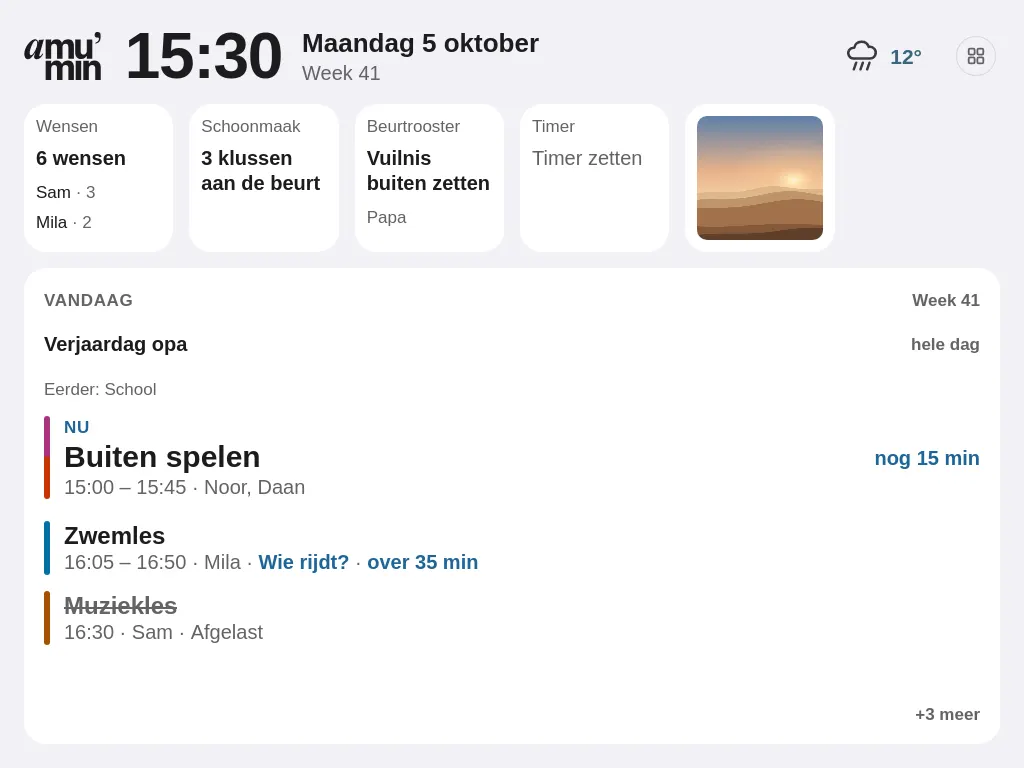
Small
One number or one line: enough for a glance.
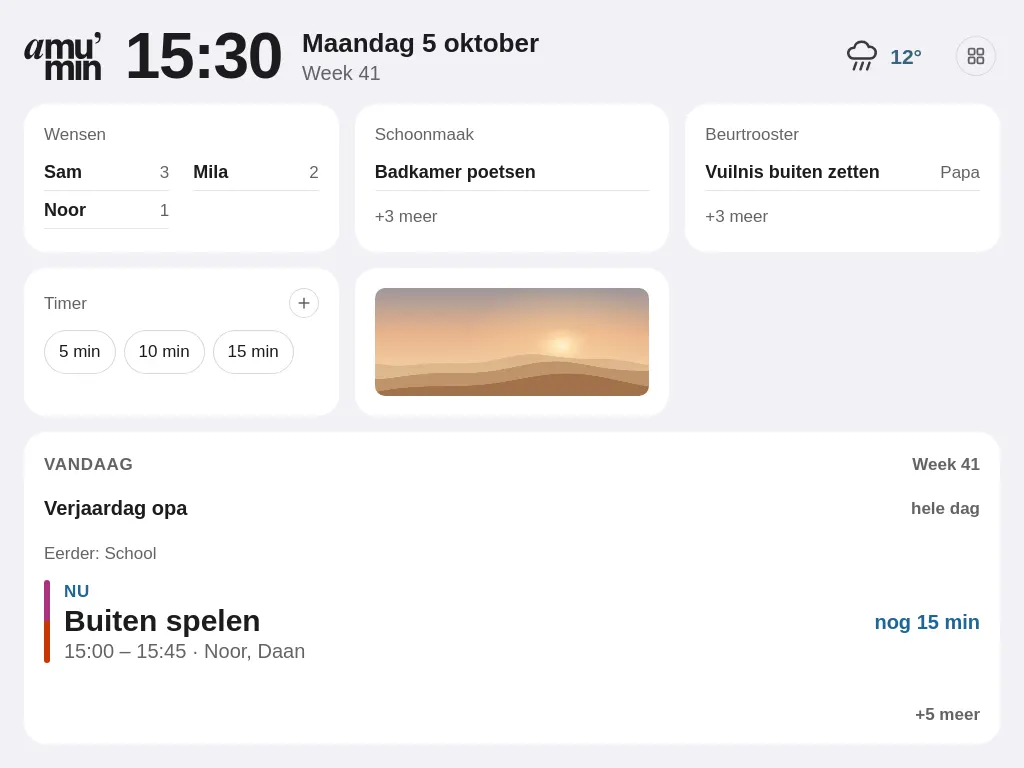
Medium
The first lines, and how many more there are.
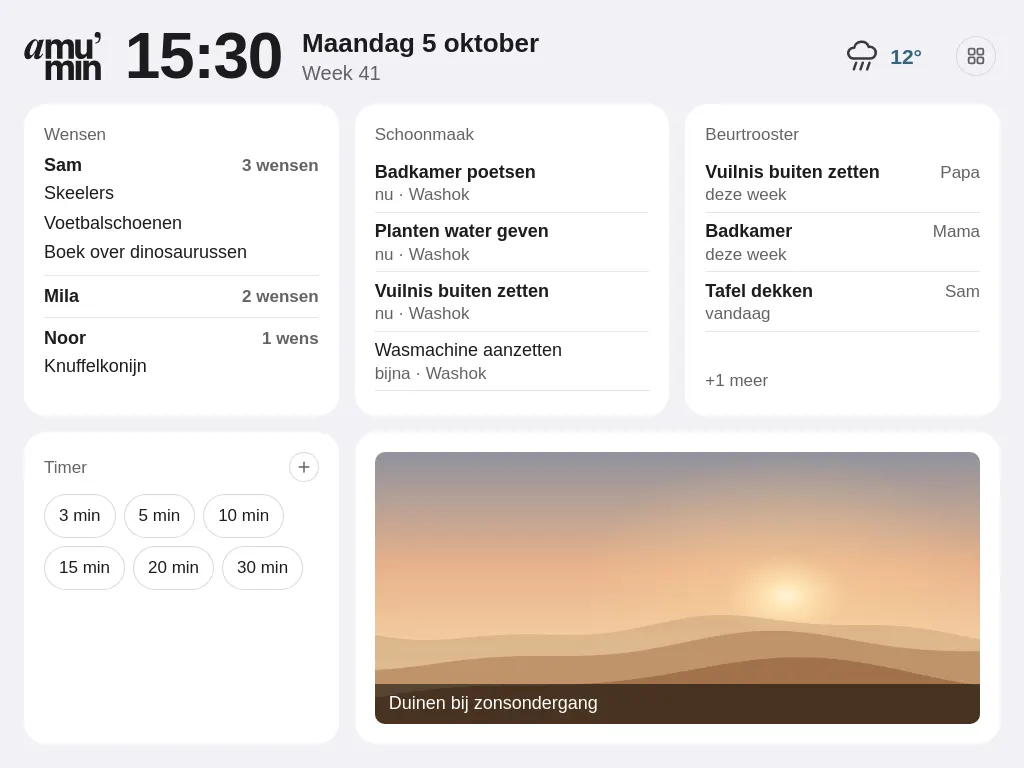
Large
The whole list with details. Some widgets also come in extra large.


02By group
Every widget. In the groups the board uses.
Each widget names the module it belongs to. When that module is off, the widget is not there; switch it on in the app under Modules.
Day
What is on today and what still needs doing.
- Agenda
- Today’s appointments, with what is on now and which one still needs a driver.
- Tasks and family
- One person’s tasks to tick off, with everyone below to switch between.
- Tasks
- Today’s open tasks, and how many are already done.
- Coming up
- What is coming up: birthdays and special days.
- To-dos
- Jobs without a date, with who they are for; tick them off on the board.
- Timer
- This board’s kitchen timer: quick minutes, pause and stop.
- Clock
- The time in large type, with the day and the date.
- Departure
- The next departure: what time, where to and who drives.
- Reminders
- The reminders still to come today and tomorrow, and who they are for.
Home
Meals, shopping and the jobs around the house.
- Meals
- What is for dinner tonight; the large size adds the weekly menu.
- Who is eating
- Who is joining dinner tonight.
- Bookings
- What is booked at home, such as the washing machine.
- Groceries
- The open shopping items, ticked off with one tap.
- House round
- When the round of the house is due, with start or postpone.
- Cleaning
- Which jobs from the cleaning cupboard are due now. A tap opens the cupboard; you tick off there.
- Chore rota
- Who has which chore this week or today, and what is already done. View only.
- Stock
- What is in the house, with the amount if it has been filled in.
- Cookbook
- Today’s dish with time, servings and ingredients, and the newest dishes.
Family
Who drives, what there is to tell and what belongs to the children.
- Drop-off and pick-up
- Who drops off and who picks up, with or without the pick-up time.
- Messages
- Only the number of new messages; never the text.
- Notes
- Notes on the wall, typed or handwritten.
- Rewards
- In the Children theme each child’s stars and savings goal; in the other themes the open tasks.
- School
- Homework and tests per child, with how often they have practised. Never a grade.
- Wishes
- The children’s wishes. For a child with a child lock, only the number.
- Photo
- One of your own photos, changing every minute, or one photo a day. Only photos a parent put on the board.
- Check-in
- Today’s state of the daily check-in. The fixed card at the top of the board stays.
Weather
For the household’s approximate town.
- Weather
- The weather now and today, with what to wear; compact or with a picture.
- Precipitation
- Rain for the next few hours as bars, and when it turns dry.
- Week
- The next seven days: temperature and rain.
Calendar and tradition
Optional. This group only holds the widgets of the calendar or tradition you choose yourselves in the family profile. Choose nothing and the group is not there.
Faith and traditions (optional)Private (only after confirmation)
Sensitive information. By default none of this is on the board. A widget only shows something after the person confirms it themselves, for one tablet: first a screen that says exactly what becomes visible and to whom, then their own PIN. The calm mode shows no numbers. Taking it off is always possible, with one tap.
- Healthy habits
- Only after the person confirms it themselves. Calm: whether something was filled in today, the streak, water and movement. With numbers, confirmed separately: weight, kcal and body fat.
- Fasting
- Only after the person confirms it themselves. Calm: that someone is fasting today. With times, confirmed separately: when they eat.
- Growth
- Only after a parent confirms it, per child. Calm: when the last measurement was taken. With numbers, confirmed separately: height and weight.
- Money
- Only after the person confirms it themselves. Calm: how many fixed payments are due this week. With amounts, confirmed separately: name and amount. Never a bank balance.
- Split costs
- Only after the person confirms it themselves. Calm: how many items are open. With amounts, confirmed separately: your own balance.
- Private to-dos
- Only after the person confirms it themselves. Calm: how many private to-dos are open. With titles, confirmed separately: the titles.
- Family circle
- Only after confirmation. Calm: how many people are in the family circle. With names, confirmed separately: their names.
03Screens
More than one screen.
- A board has up to 12 screens. Swipe between them, or tap previous and next.
- Each screen has its own theme: Grid for today and Children for the rewards, for example.
- When the board is at rest it can page through the screens by itself, if you switch that on. Keep a finger on the screen and it stays; a tap brings back the normal board.
- “Show everything” puts down a sample layout with everything you have switched on, in one tap. Your previous layout is kept and can be restored.
Arrange things in the app, or on the board itself with a parent PIN.

04Privacy
The board hangs on the wall.
Visitors can see it. Private data, such as your weight or your money, therefore never appears on the board by itself: only when you expressly choose that yourself. What is on the board holds back too: Messages shows only a number, School never a grade, and wishes behind a child lock stay closed.
Privacy and dataArrange a board yourself?
Join the waitlist. We set it up together, with the widgets that suit you.
Prefer e-mail? Email us to sign up (opens your e-mail program). You are not subscribing.